

Testing Fitimyze by assigning yourself a program
Your Fitimyze account includes both roles at once: coach and athlete. You can assign one of your own programs to your athlete profile to see exactly what your athletes see. It's also the quickest way to follow your own training from the same account.
Step 1: assign the program to your athlete profile
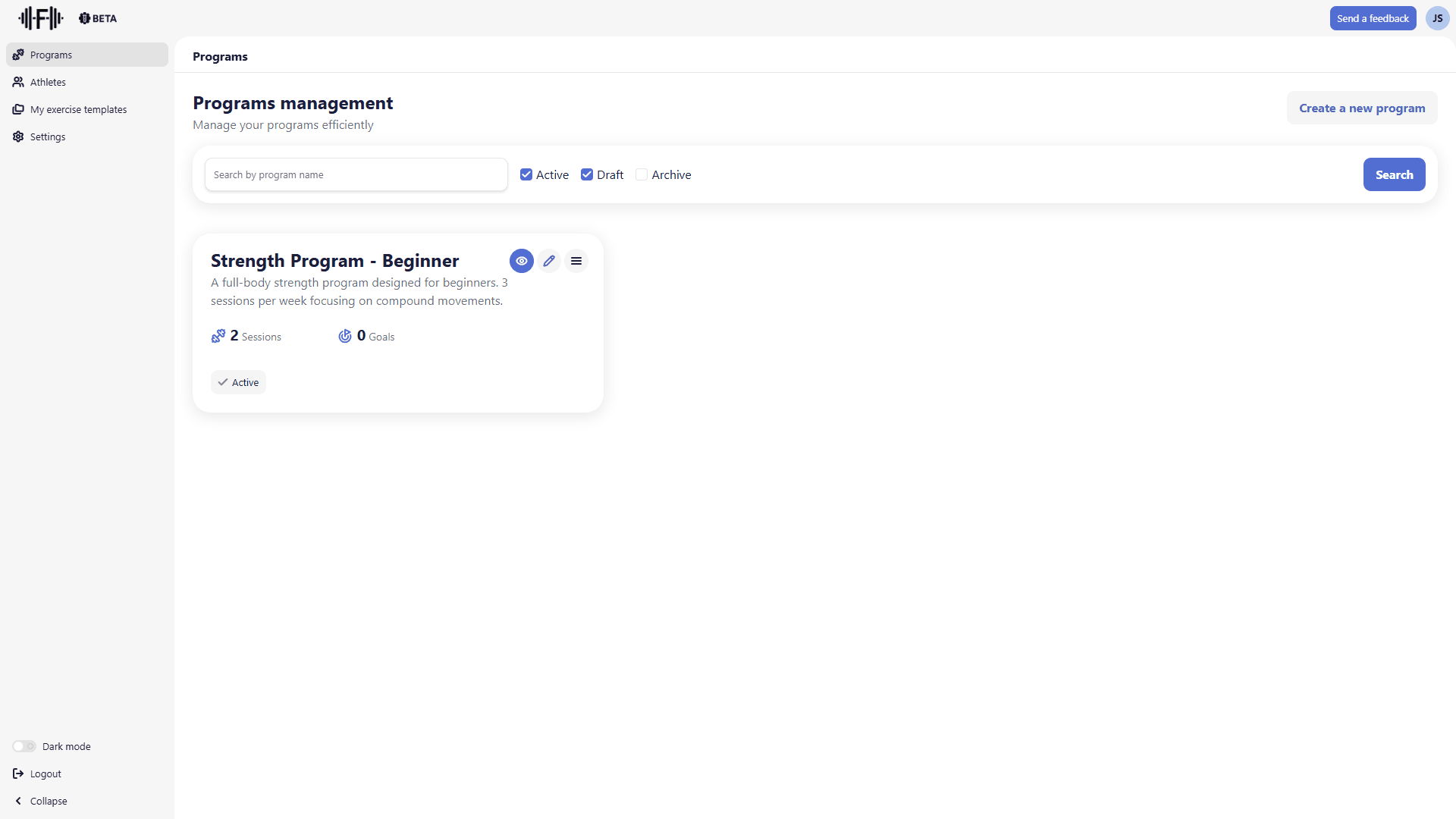
From the Programs page, click the edit icon (pencil) on the program you want to test.
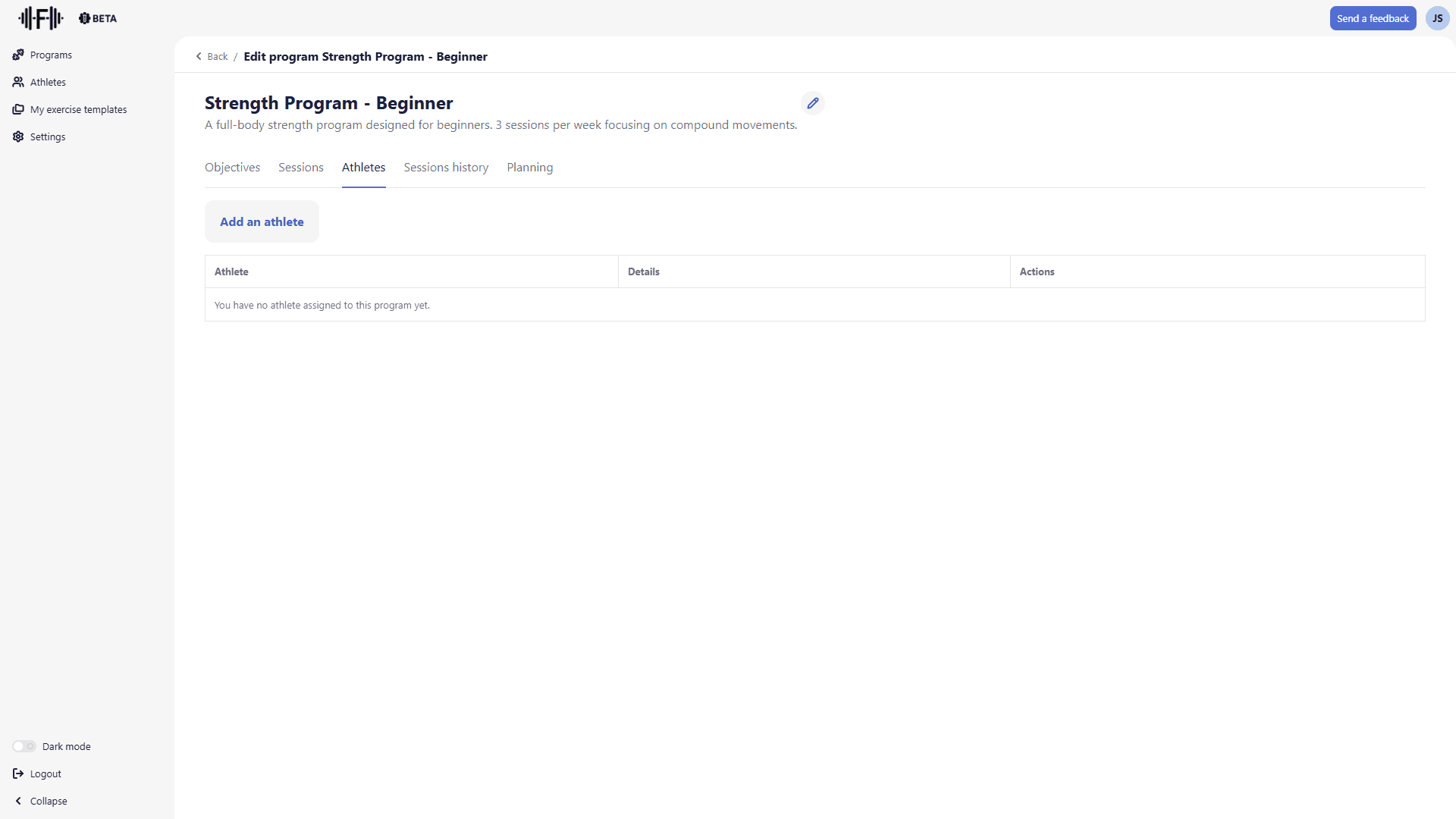
In the program editor, go to the Athletes tab.
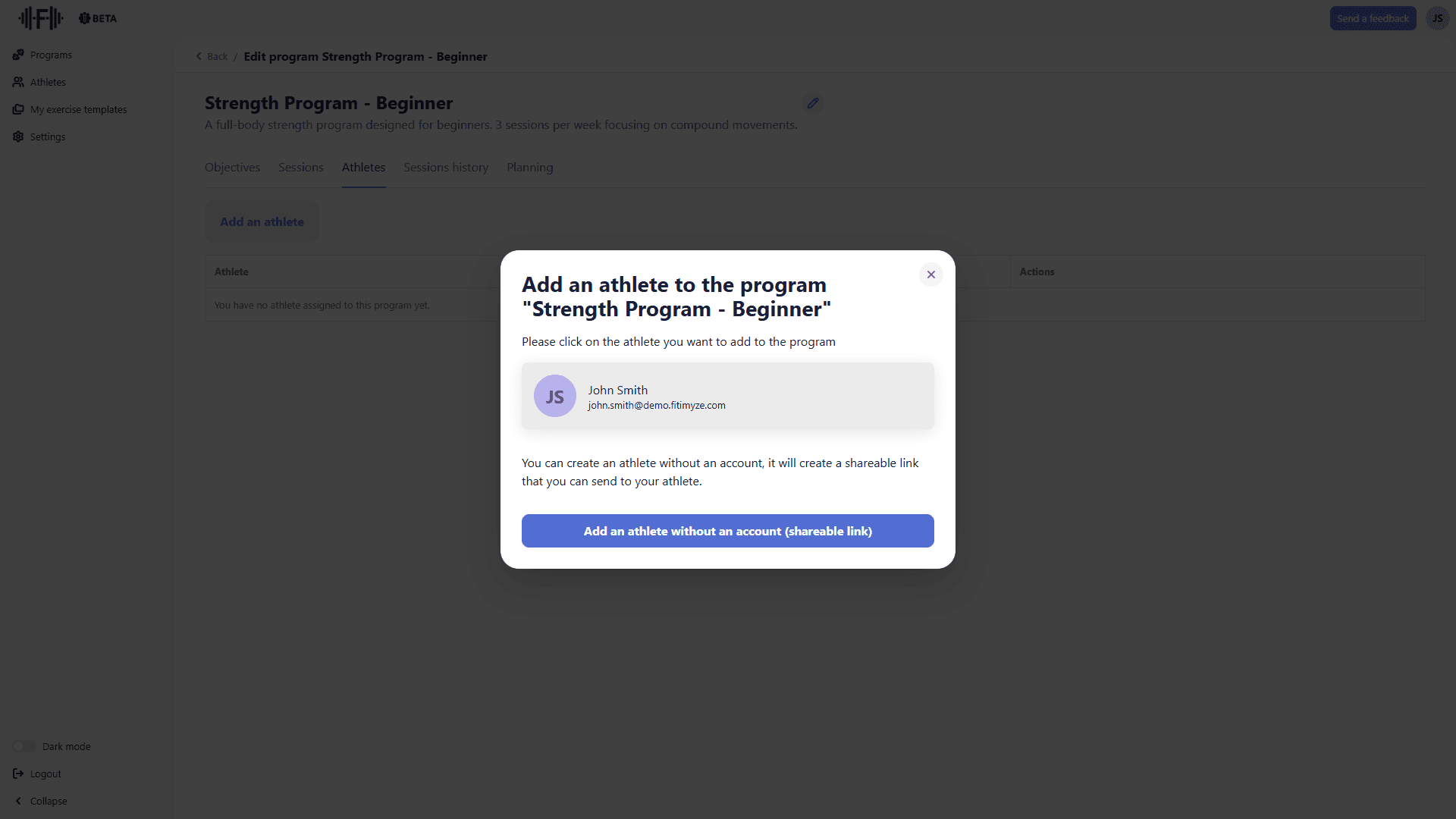
Click "Add an athlete". A dialog opens listing your available athletes. Your own athlete profile appears there.
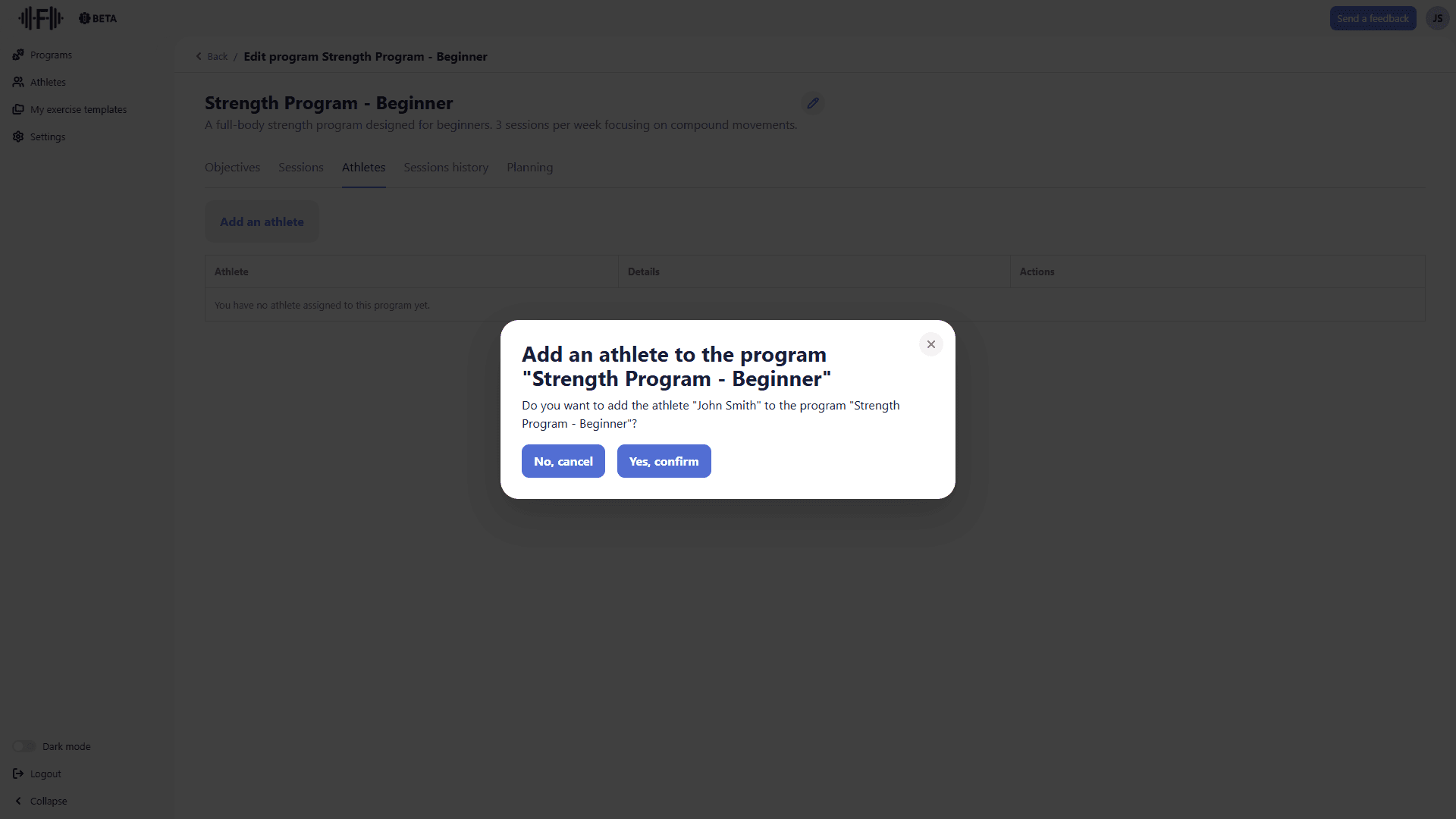
Click your name to select yourself. A confirmation prompt appears: click "Yes, confirm".
Your athlete profile now appears in the athletes table for this program.
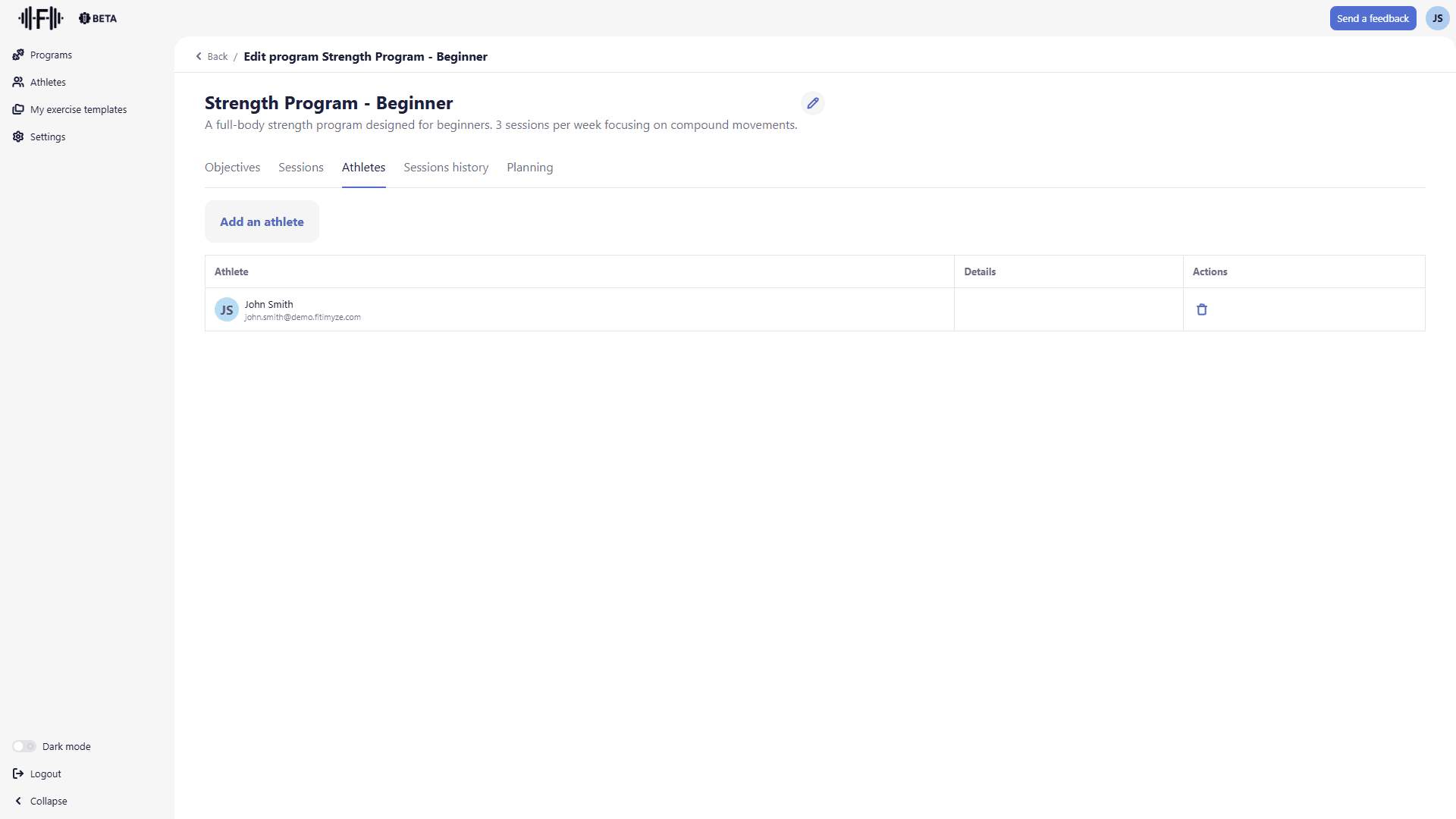
Step 2: switch to your athlete space
In the left sidebar, click Settings. The page shows three options: My coach profile, Password, and Switch to my athlete profile.
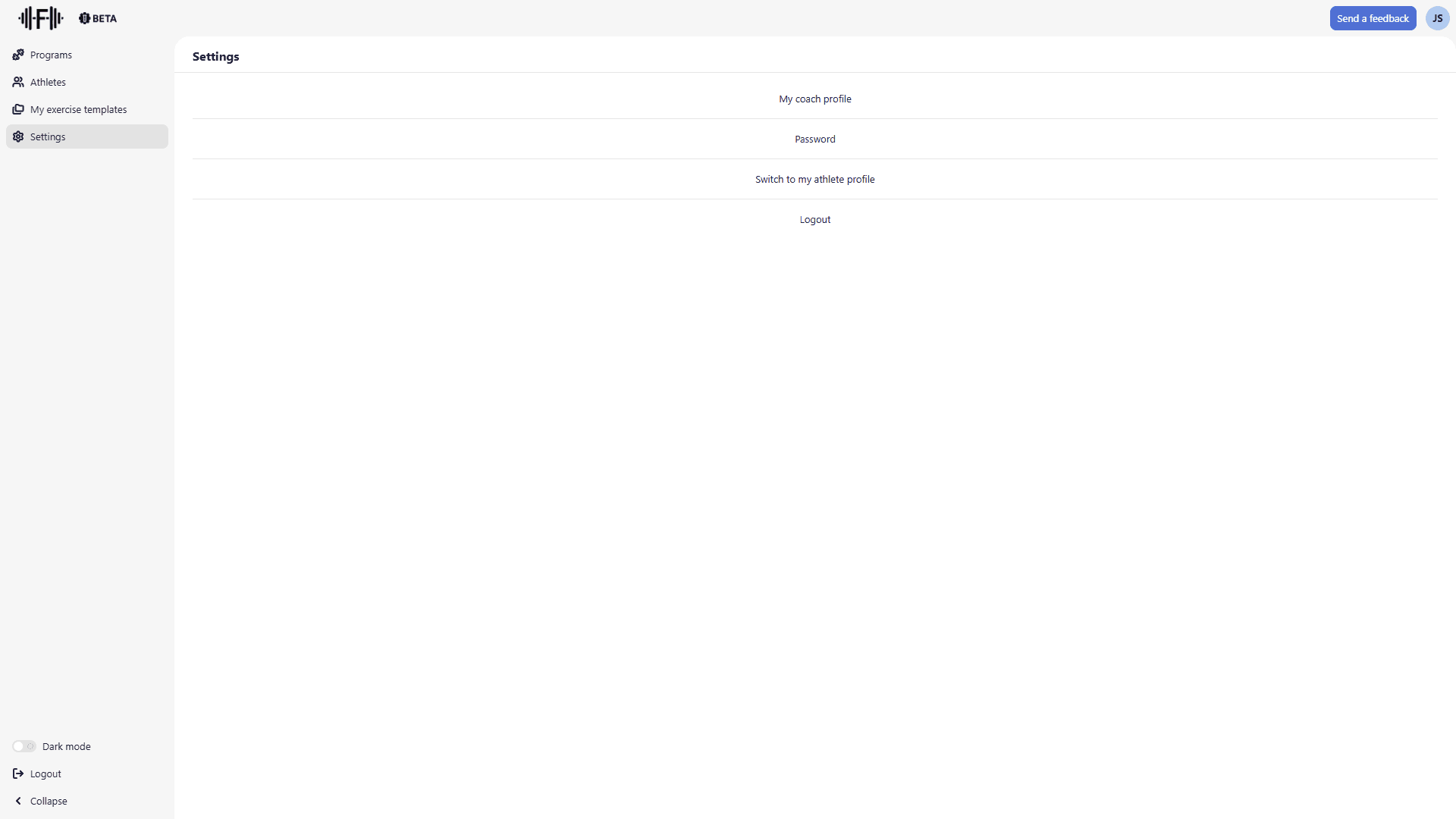
Click "Switch to my athlete profile" to access the athlete interface.
Step 3: find the program and start a session
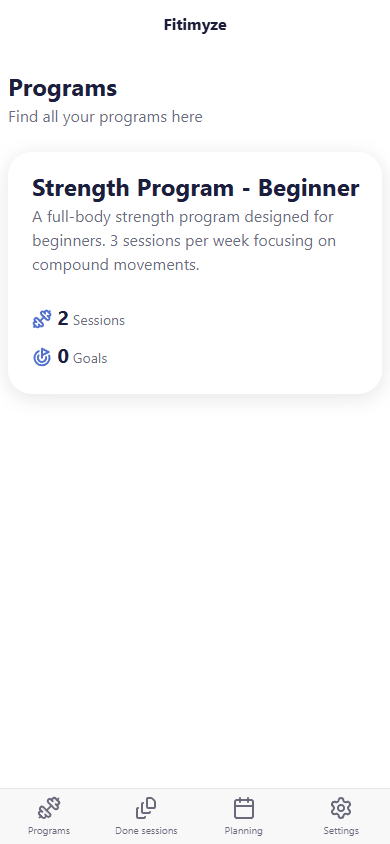
The athlete interface is optimised for mobile. You land directly on the Programs page, which lists all programs assigned to you. The program you just assigned appears there.
Tap the program card to see its content. Sessions are listed with a "Start" button and a "Show exercises" accordion to review the details before beginning.
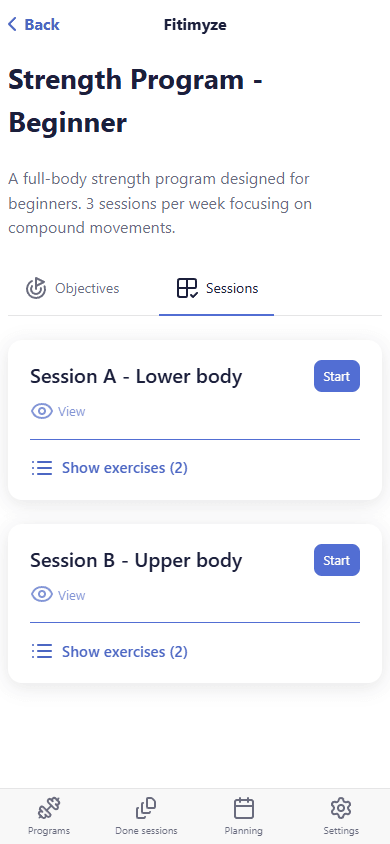
Tap "Show exercises" to check a session's parameters: exercise names, sets, repetitions, and weights.
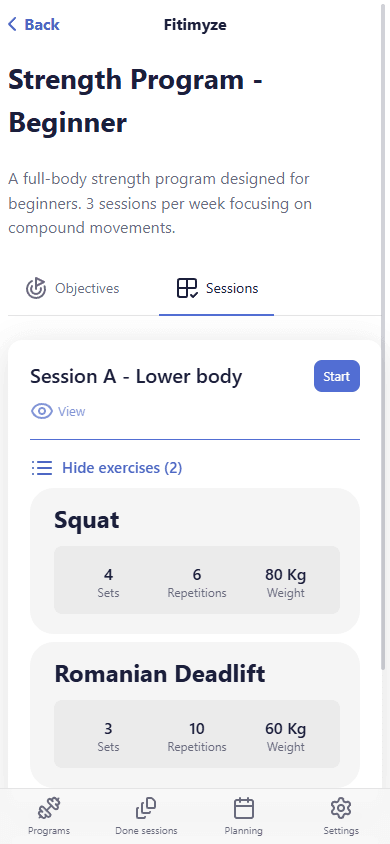
When you're ready, tap "Start". A confirmation dialog appears.
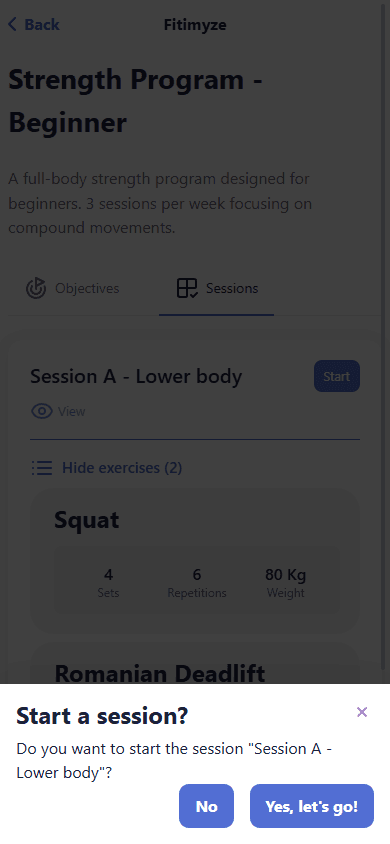
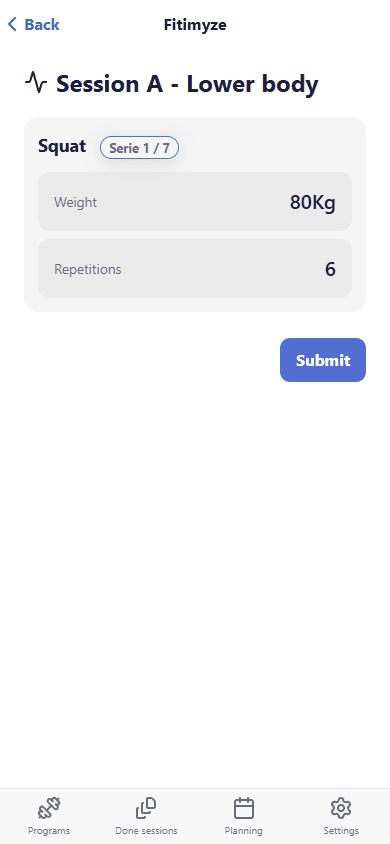
Tap "Yes, let's go!" to launch the session. You enter workout mode: each exercise is displayed set by set with its parameters (weight, repetitions, rest time…). Tap "Submit" after each set to move to the next one.
Conclusion
You can assign any of your programs to test the athlete experience. It's useful for checking that a program is properly configured before sharing it with your actual athletes, or for tracking your own training from the same account.