

Starting a training session on Fitimyze
As an athlete, your coach assigns training programs to you directly on Fitimyze. Once a program is assigned, you can access your sessions and start them. There are two ways to do it: from your program's session list, or from your planning tab if your coach has scheduled the session on a specific date.
Accessing your programs
Log in to your Fitimyze account. You land directly on the Programs page, which lists all the programs your coach has assigned to you.
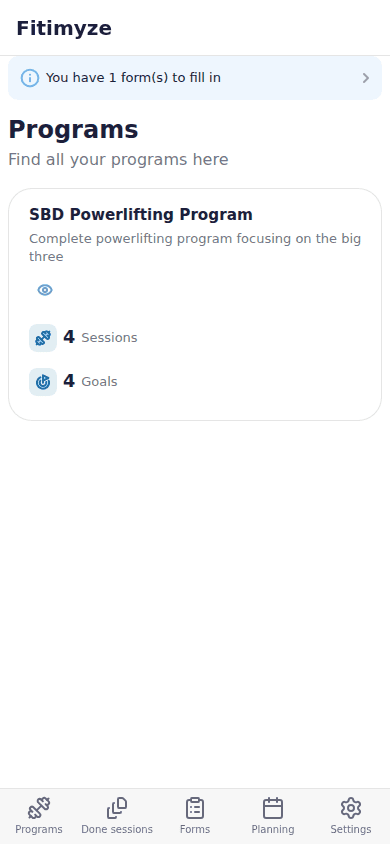
Each card shows the program name and the number of sessions it contains. Tap a program to open it.
Viewing session exercises
Once on the program page, you see the list of all sessions. For each one, you can tap on the session to preview the planned movements: exercise name, number of sets, repetitions, weight, and rest time.
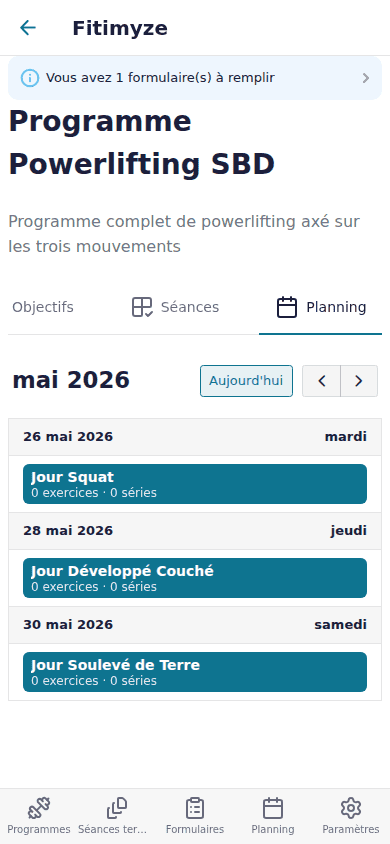
This is useful for checking what your coach has planned before you begin.
When you are ready, tap Start. A confirmation dialog appears asking whether you want to start.
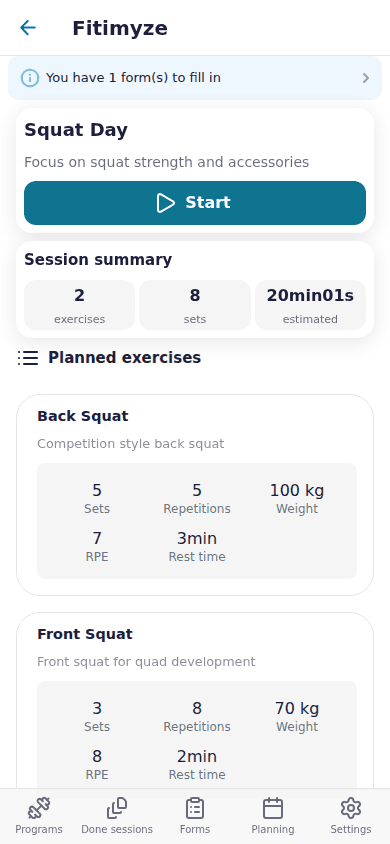
Tap Yes, let's go! and follow the on-screen instructions.
Conclusion
Starting a session on Fitimyze takes two or three taps, whether you go through your program or your planning. If you do not see any assigned program, reach out to your coach: they manage program assignments from their own space.