

Fitimyze forms: collect athlete feedback between sessions
Coaching goes beyond the training session. How an athlete feels between workouts, their recovery, any pain they experience: these are hard to track without a dedicated channel. Fitimyze lets you create questionnaires that your athletes fill in directly from their space, at a moment you define.
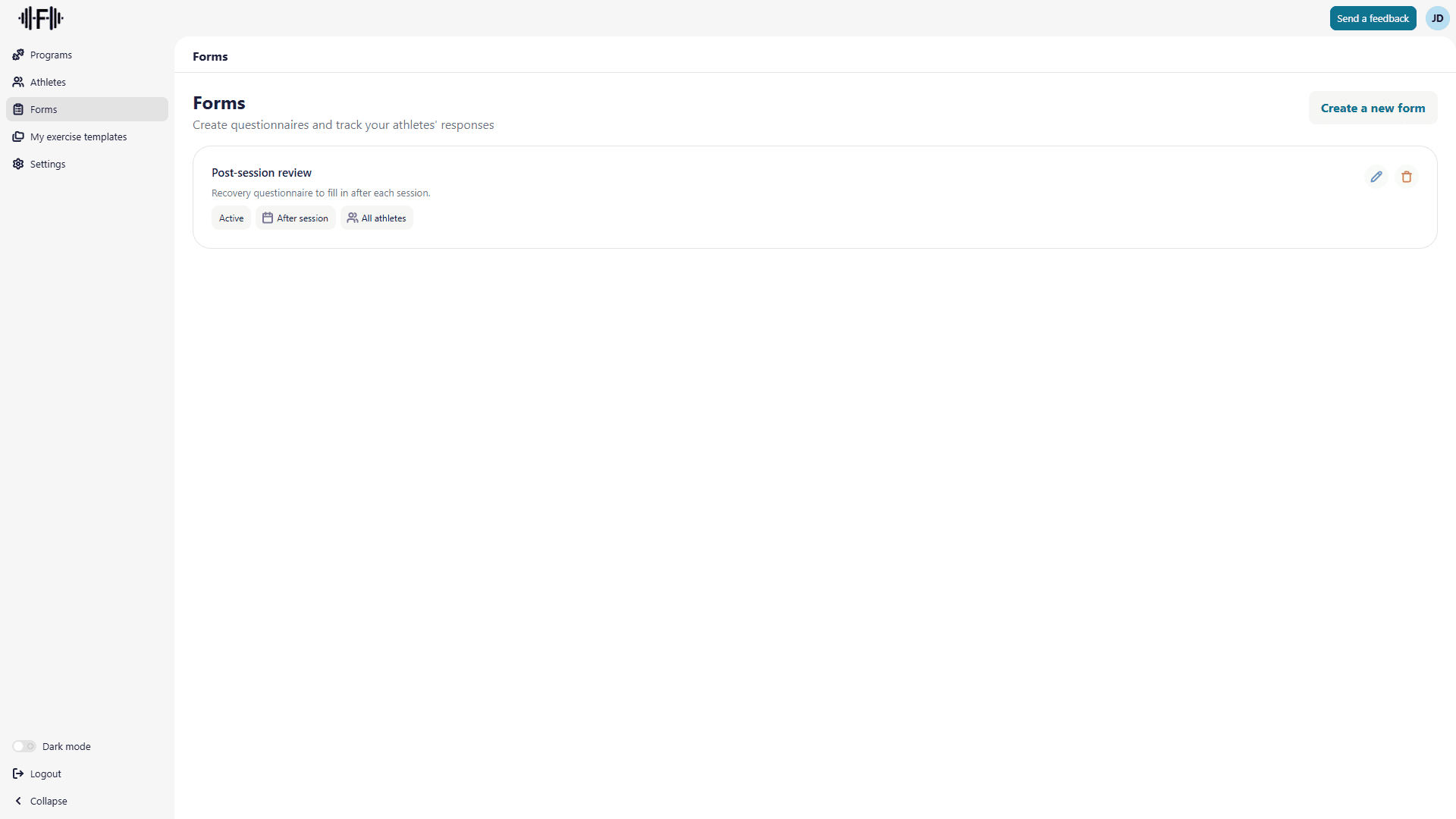
Creating a form
From your coach dashboard, go to the Forms section in the sidebar. Click Create a new form to open the creation dialog.
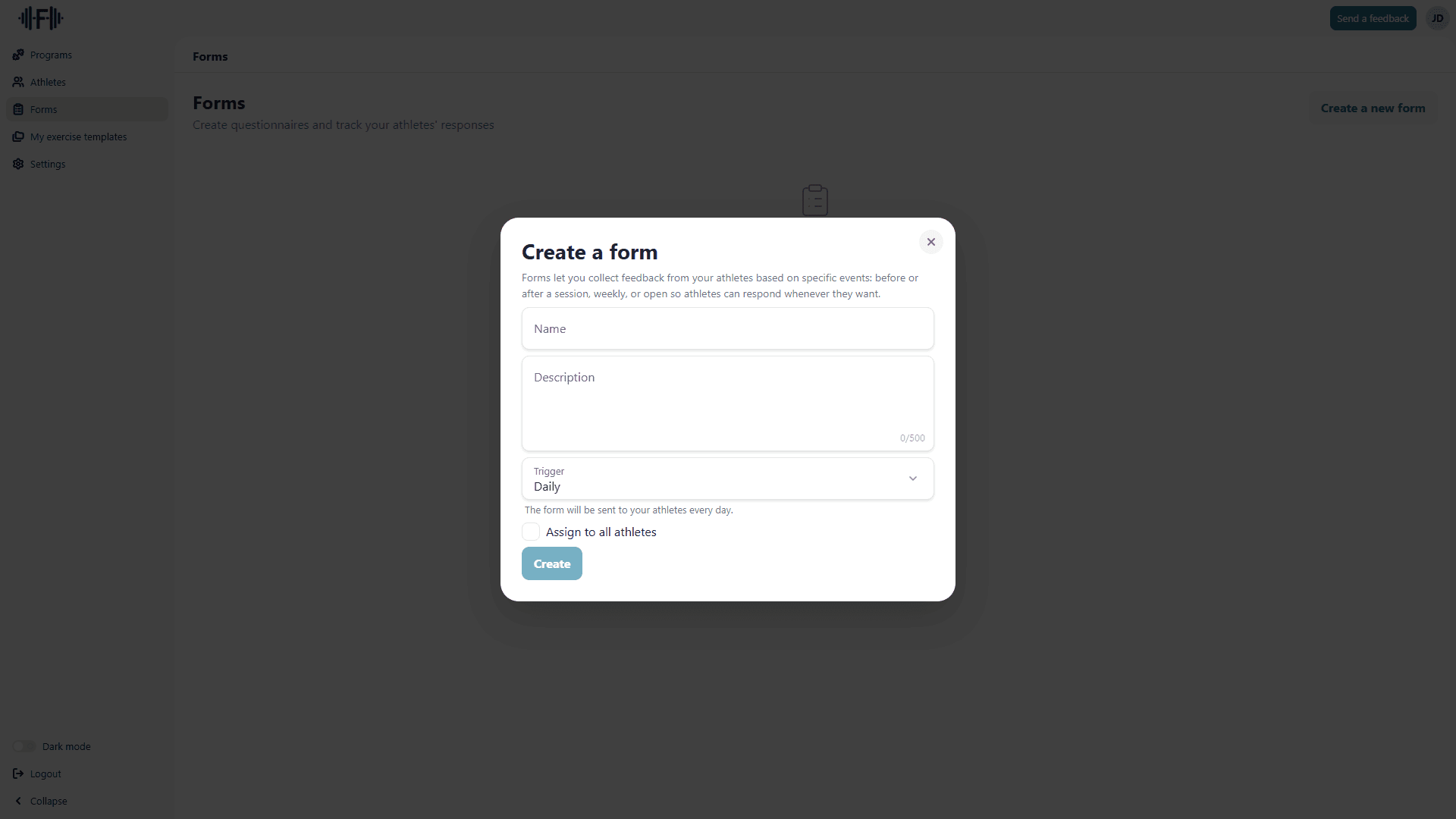
You enter a Name, an optional Description, and a Trigger: that last parameter is what controls when the athlete sees the questionnaire.
Available triggers
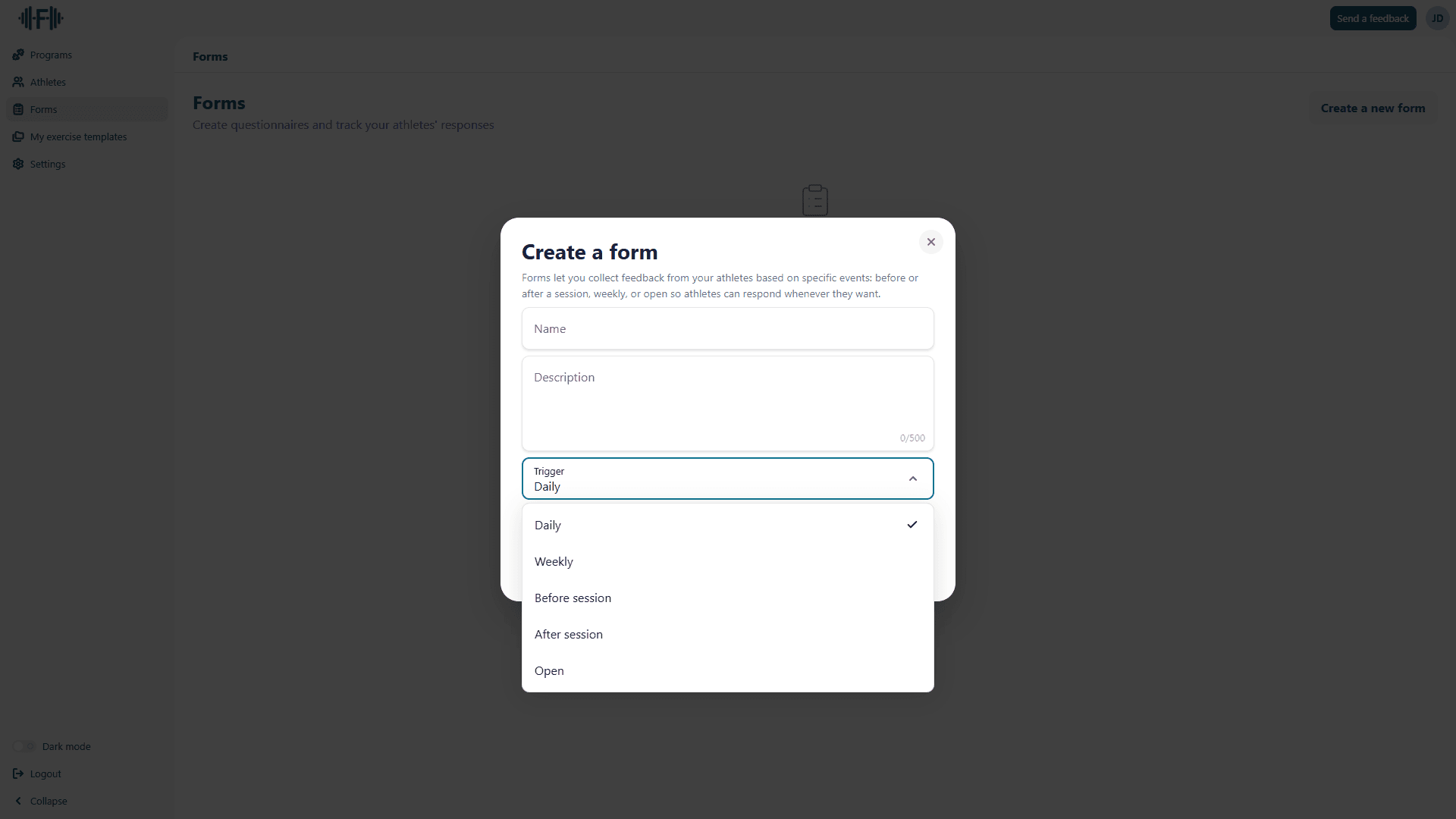
Five options are available:
- Daily: the form appears every day.
- Weekly: it appears once a week, on a day you choose.
- Before session: the athlete fills it in before starting a session.
- After session: it appears once the session is complete.
- Open: the form is always accessible and the athlete fills it whenever they want.
The Assign to all athletes checkbox applies the form to all your athletes immediately. You can also manage assignments individually after creation.
Configuring questions
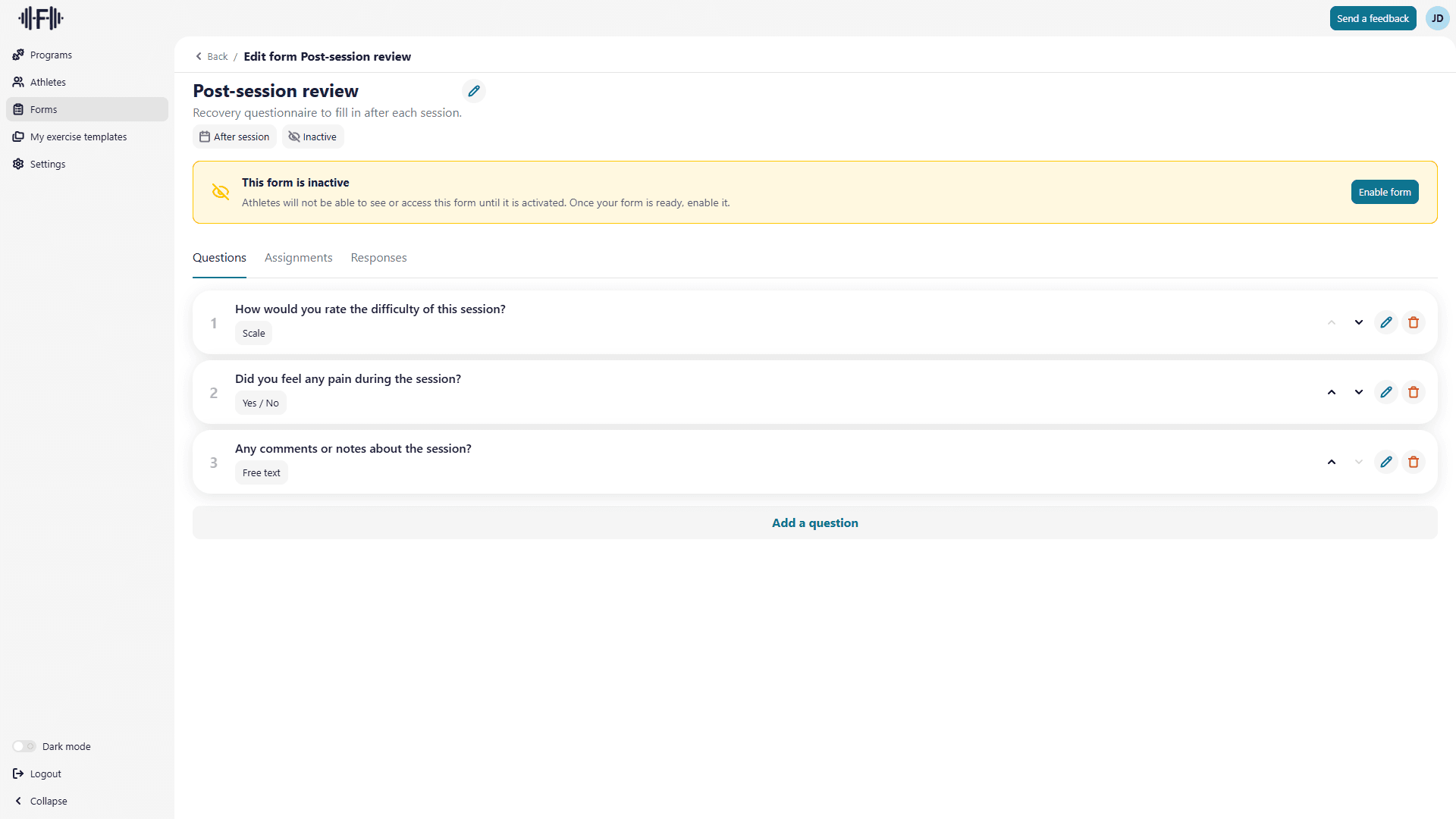
Once the form is created, you land on its edit page with three tabs: Questions, Assignments, and Responses.
The Questions tab lists all questions in the form. You can add new ones, edit their labels, reorder them, or delete them.
Question types
Clicking Add a question opens a dialog where you first choose the question type.
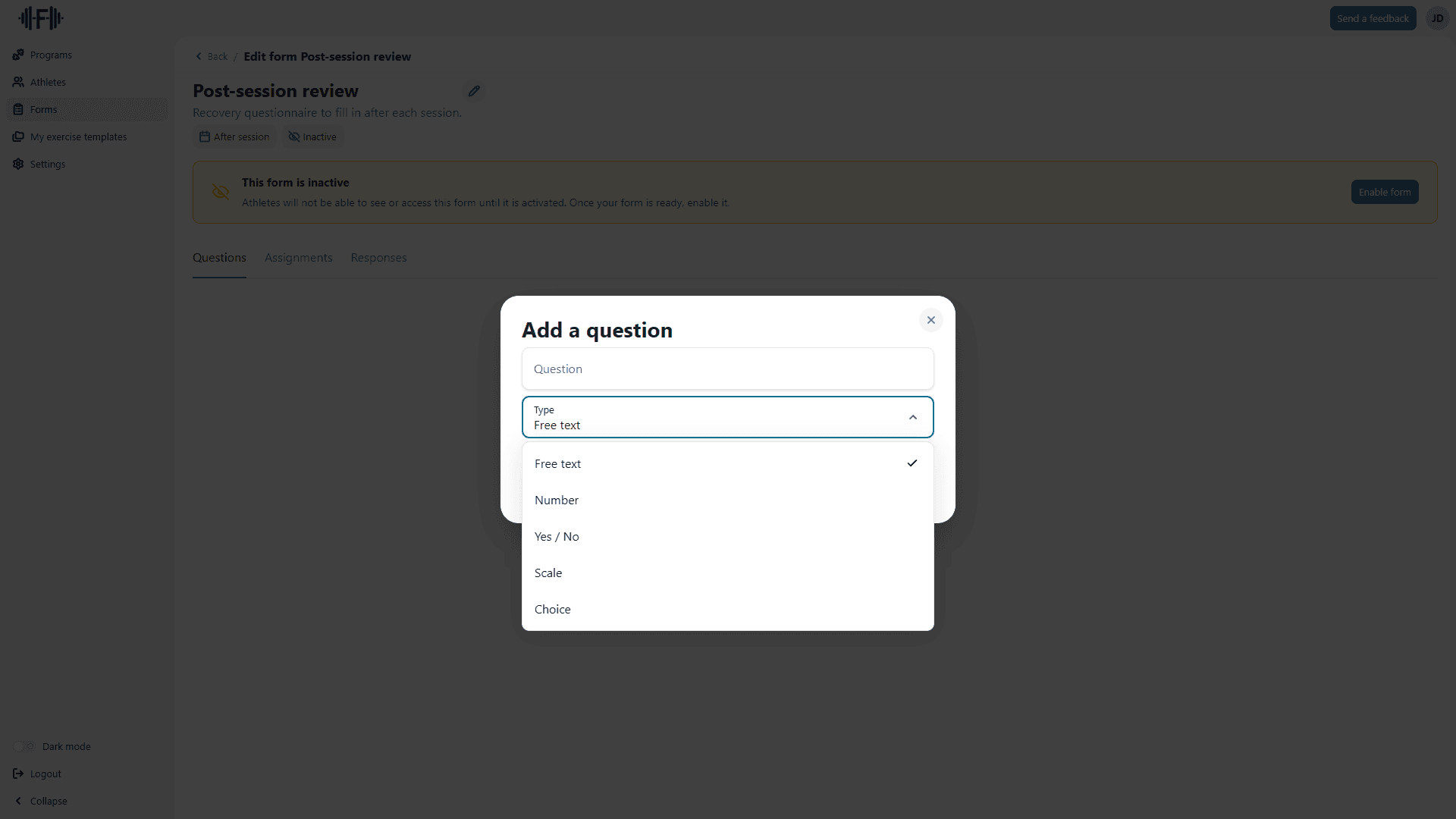
Five types are available:
- Free text: open-ended response, no format constraints.
- Number: numeric input, with optional minimum, maximum, and unit.
- Yes / No: simple checkbox.
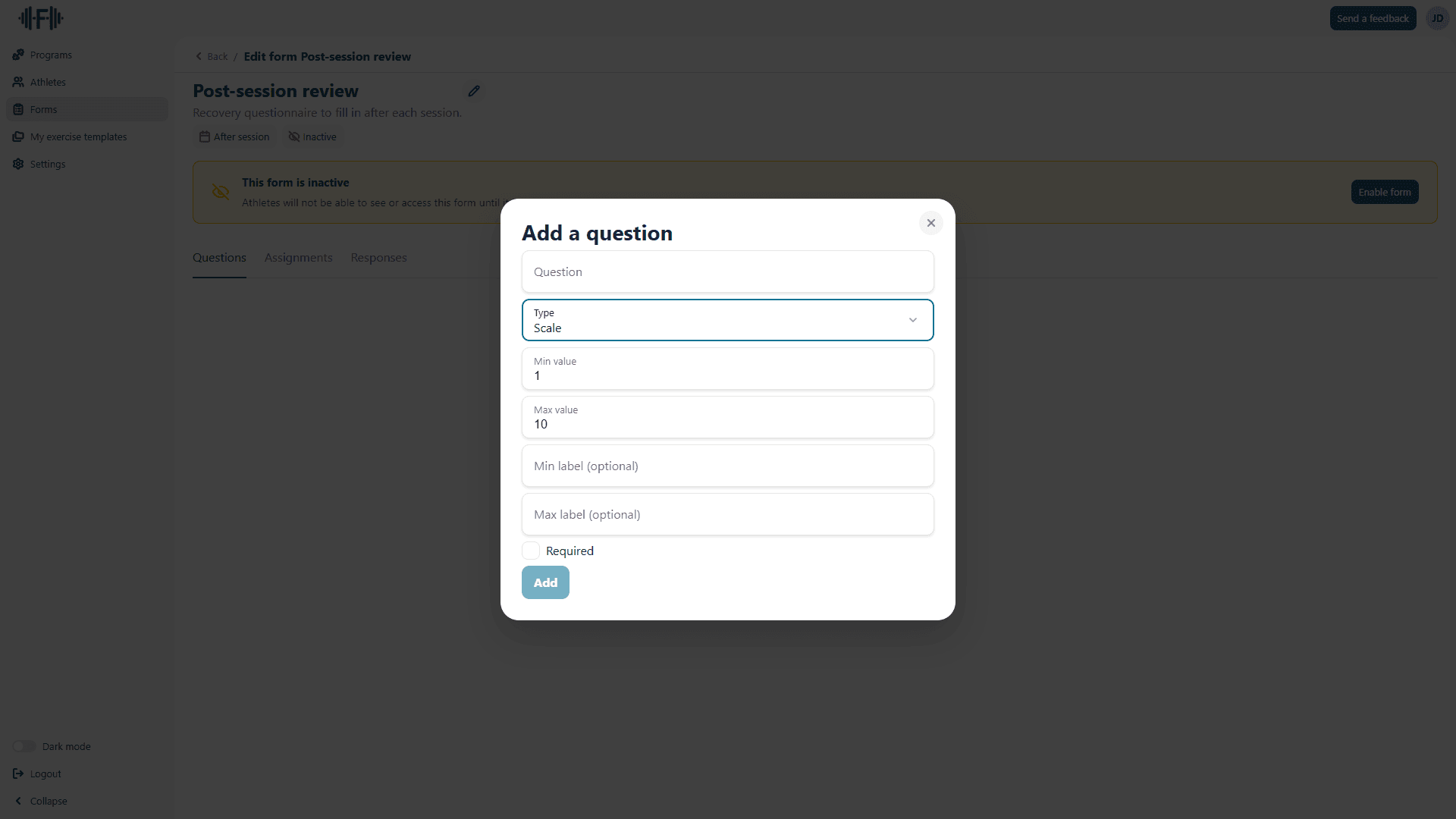
- Scale: rating over a range of values (for example 1 to 10), with optional labels at each end.
- Choice: predefined list of options, single or multiple selection.
Each question can be marked as Required, which prevents the athlete from submitting without answering it.
For session reviews, the Scale type works well: you set the min and max values, and can label each end to give context.
Assigning the form to your athletes
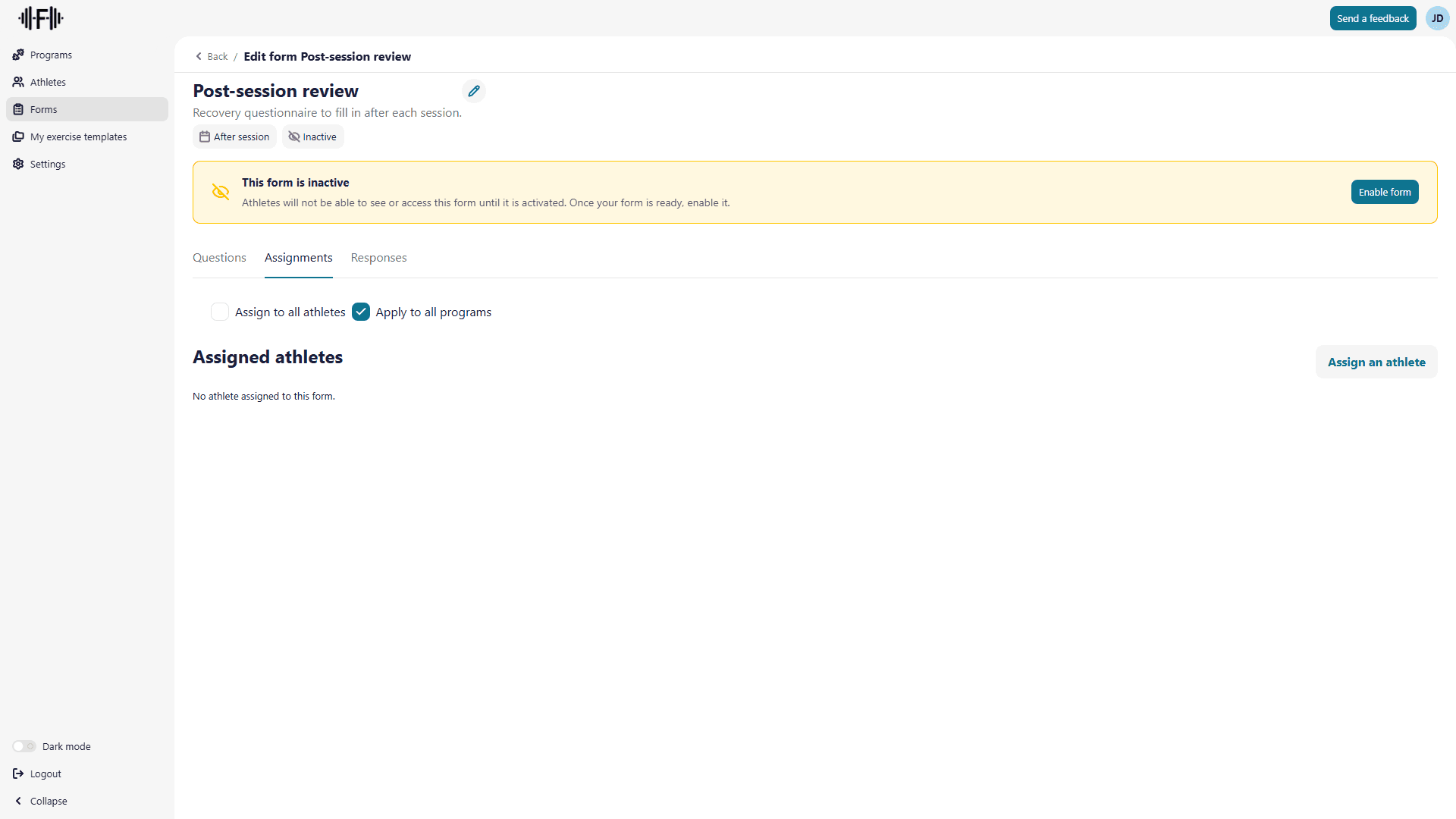
The Assignments tab controls who receives the form.
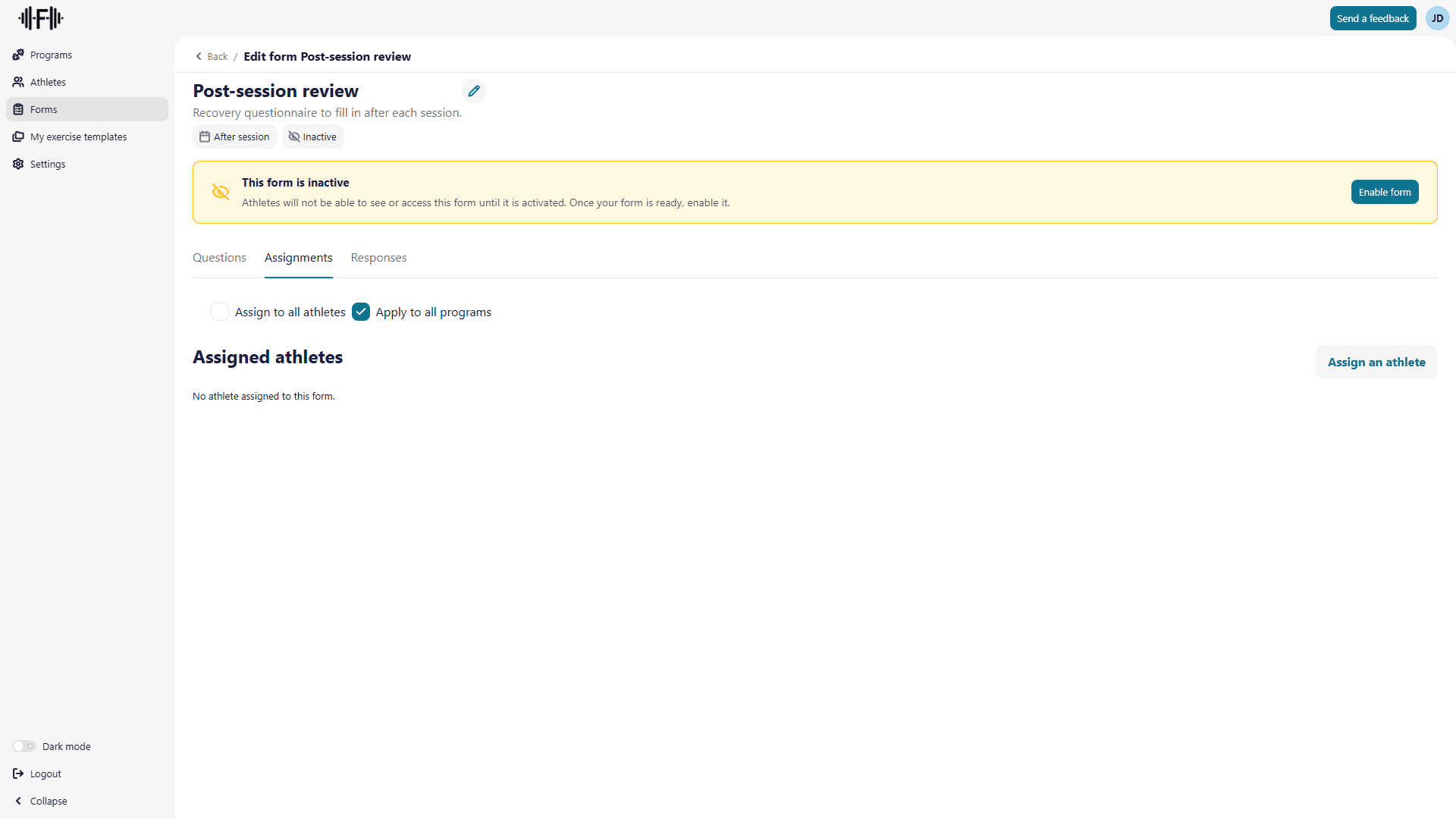
If you check Assign to all athletes, the form goes to all your athletes. Otherwise, use the Assign an athlete button to target specific people, for example to track a particular injury.
For Before session and After session forms, an extra option appears: Apply to all programs. You can also restrict the form to specific programs if you don't want it to show up everywhere.
What the athlete sees
Athletes access their forms from the Forms section of their space. Pending questionnaires are listed there.
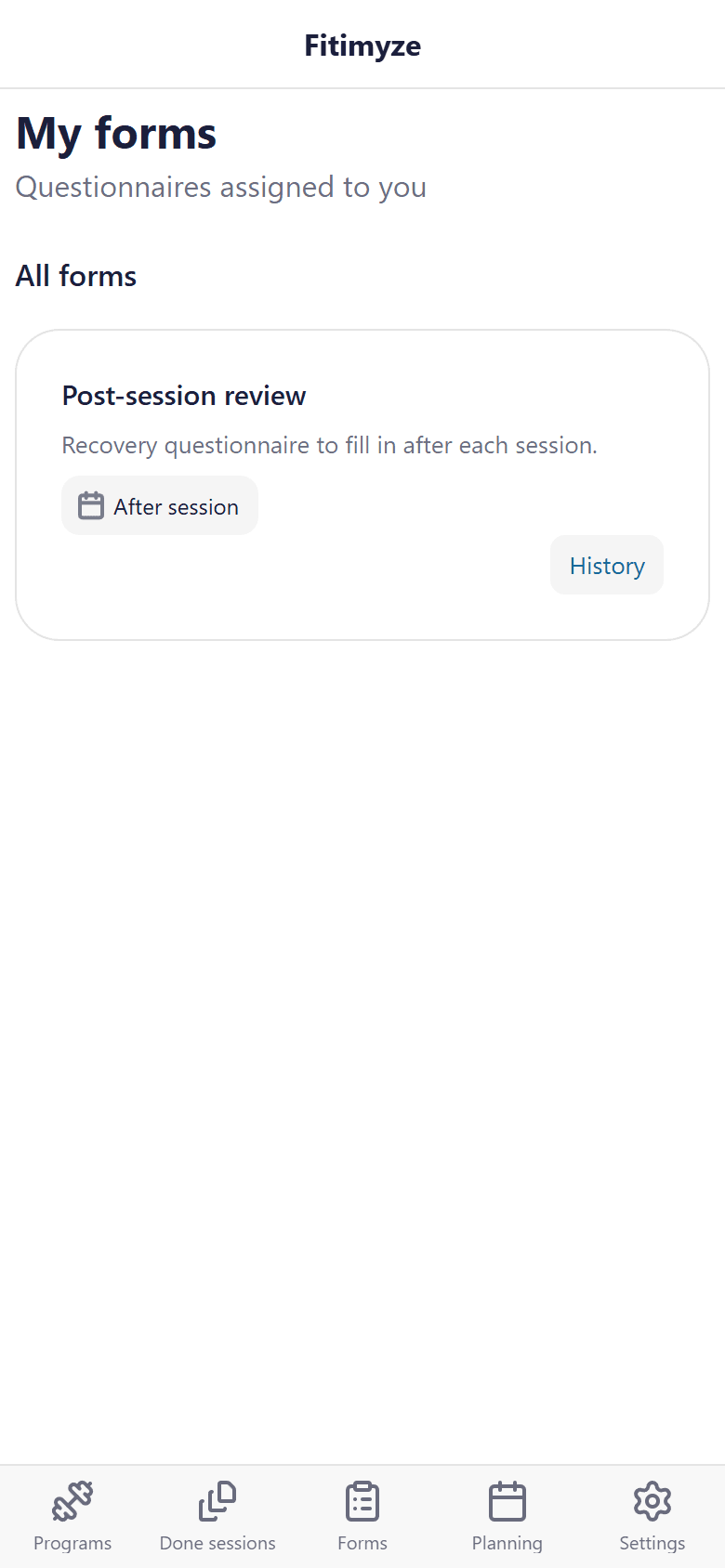
For session-linked forms, the questionnaire appears directly in the session flow, before or after the workout depending on the trigger.
Once submitted, responses show up in the Responses tab on the coach side. All submissions are paginated there, with the date, athlete name, and each answer.
Conclusion
Forms cover different needs depending on how you set them up: daily check-ins, post-session reviews, one-off questionnaires for a specific situation. The trigger and question types let you adapt to the context without creating extra work for the athlete.