
Scheduling your athletes' sessions on Fitimyze
The Planning tab lets you attach program sessions to specific dates, and adapt the session for a specific date. Your athletes then see these sessions in their space and can start them directly from their planning, without having to browse through the full program list.
Coach side: the Planning tab
The Planning tab is accessible from the program editor, provided at least one athlete is assigned. It shows the athlete's monthly calendar with any sessions already scheduled.
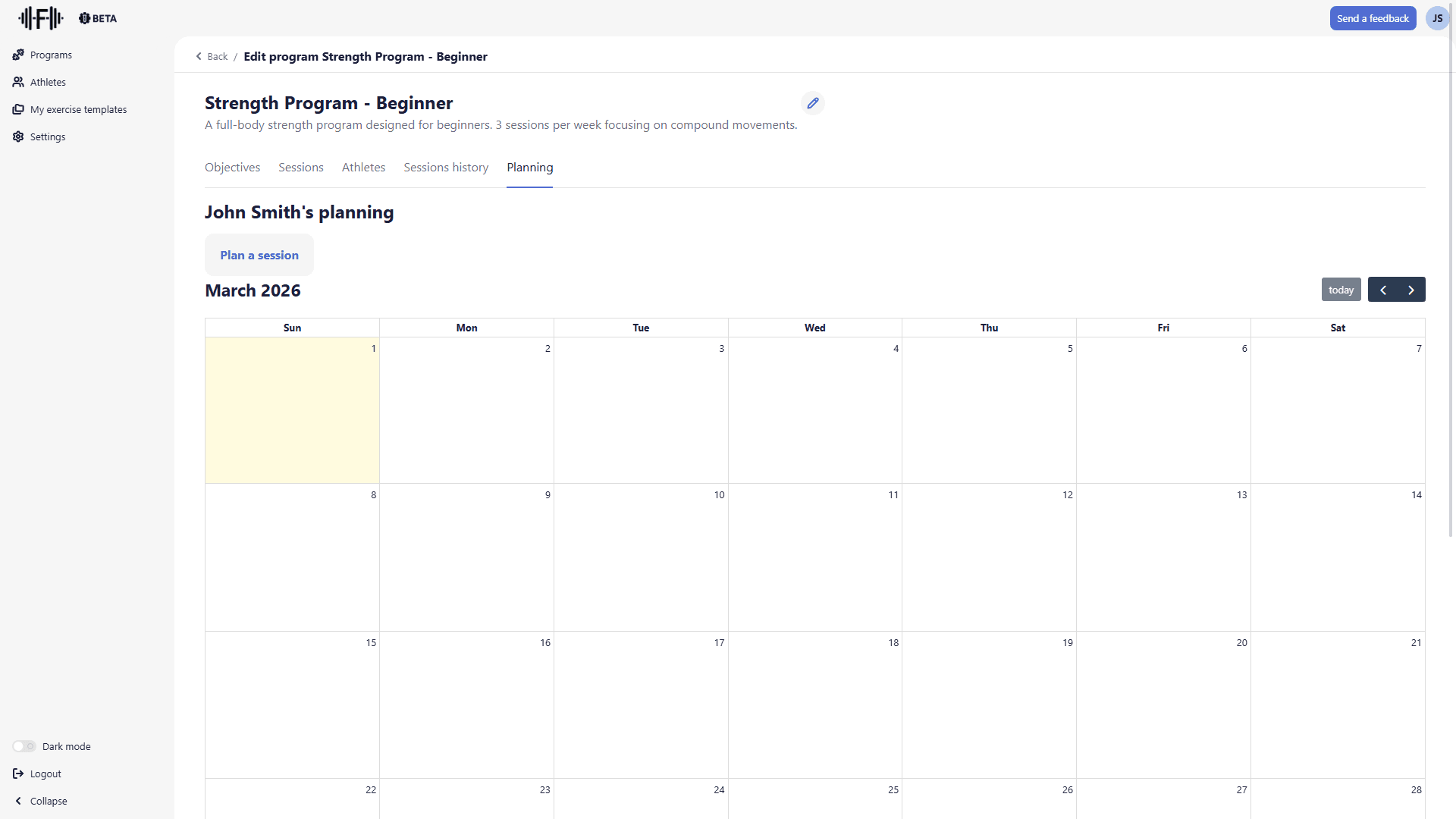
Three buttons at the top of the calendar handle navigation:
- "Previous month" and "Next month": move between months
- "today": return to the current month
The planning title ("John Smith's planning") identifies the athlete. If the program is assigned to multiple athletes, each has their own independent planning.
Scheduling a session
Click "Plan a session". A dialog opens with two fields:
- Date: the date on which to schedule the session (format d.mm.yyyy)
- Session: the session to assign, chosen from those in the program
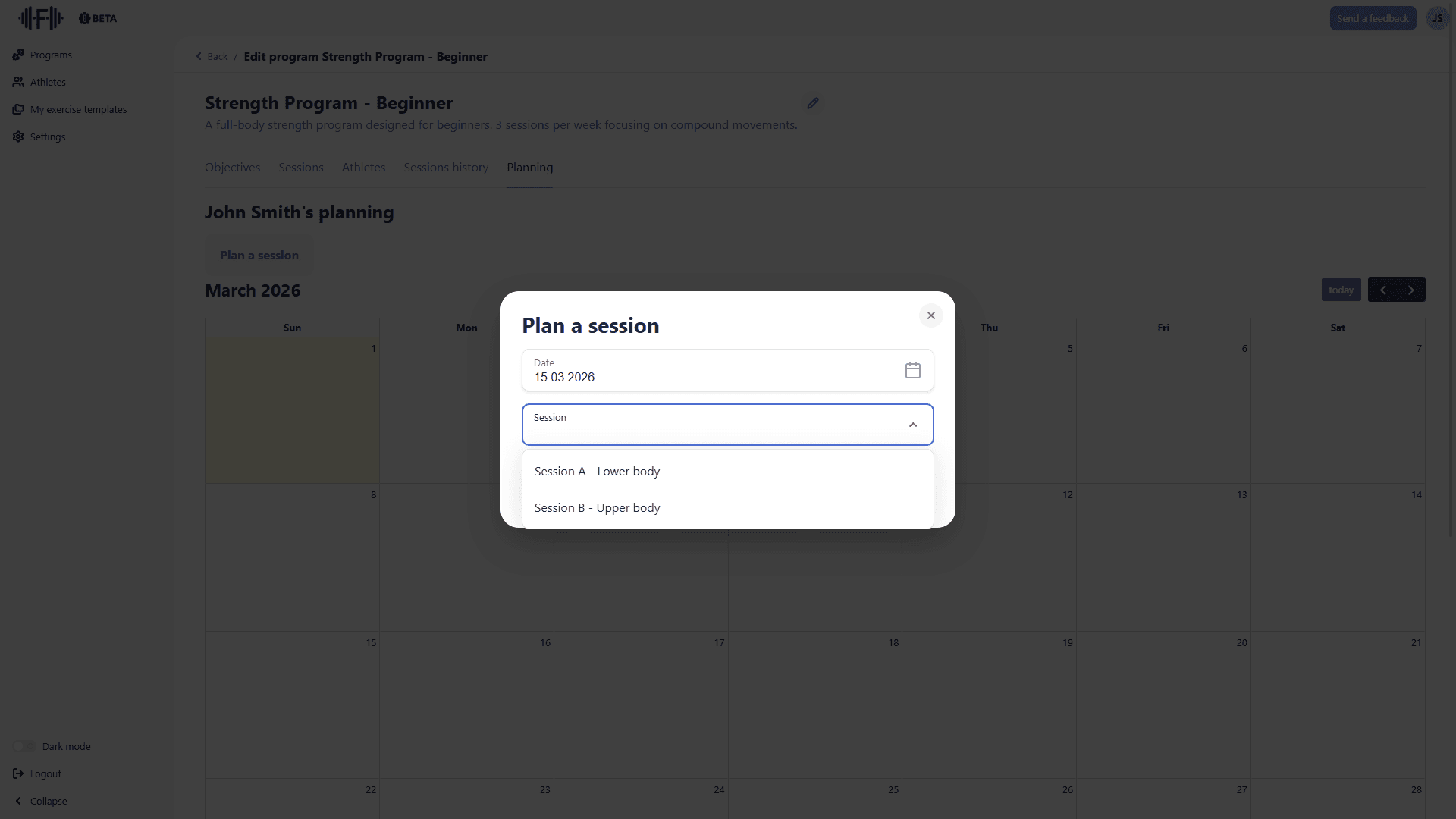
Fill in both fields, then click "Plan". The session appears immediately on the calendar at the chosen date.
Editing a planned session
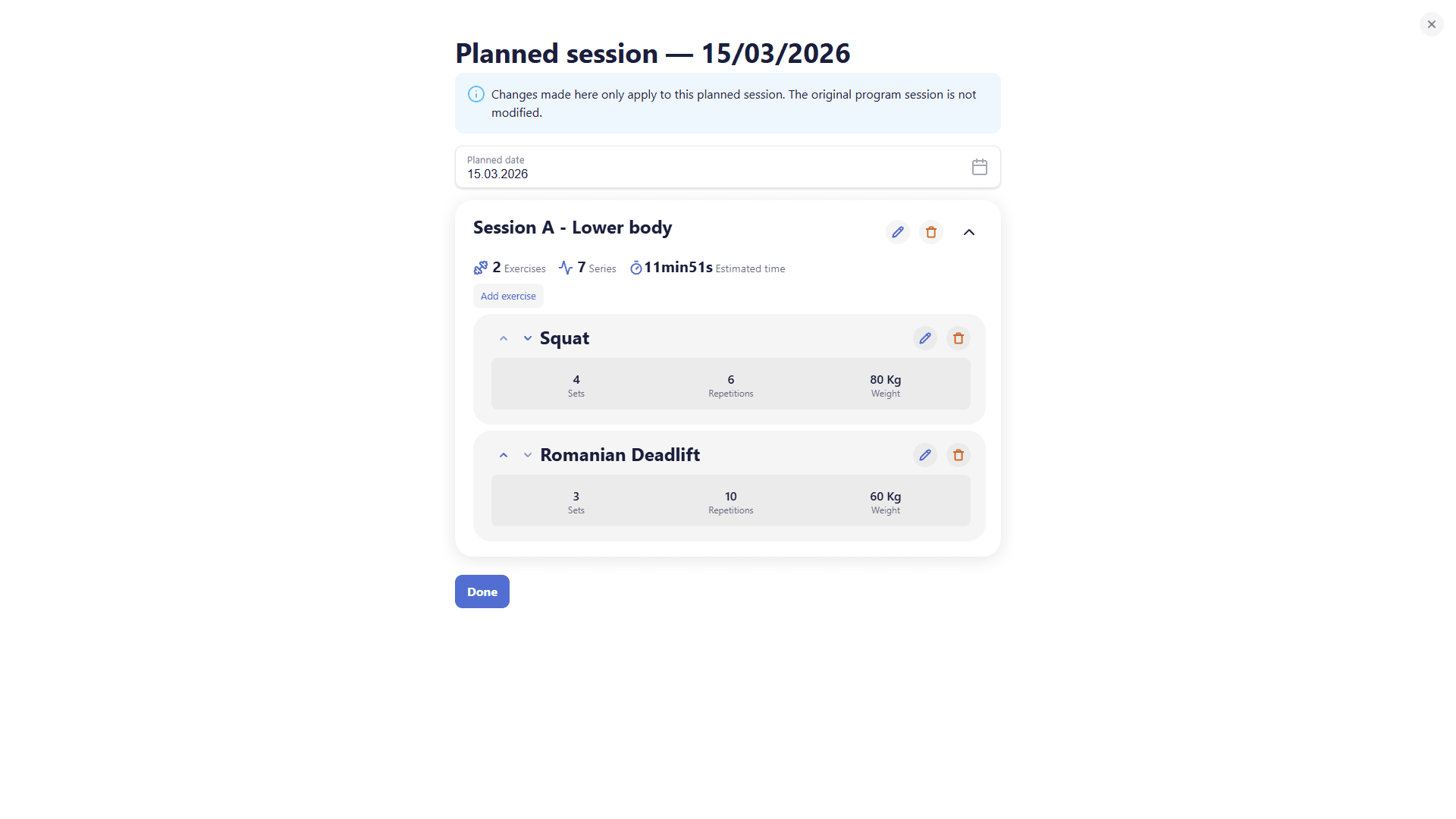
Click a session on the calendar to open its detail. You can modify exercises and parameters specifically for this planned occurrence, without affecting the original session in the program.
Athlete side: planning on mobile
On the mobile interface, athletes access their planned sessions via the Planning tab in the bottom navigation bar.
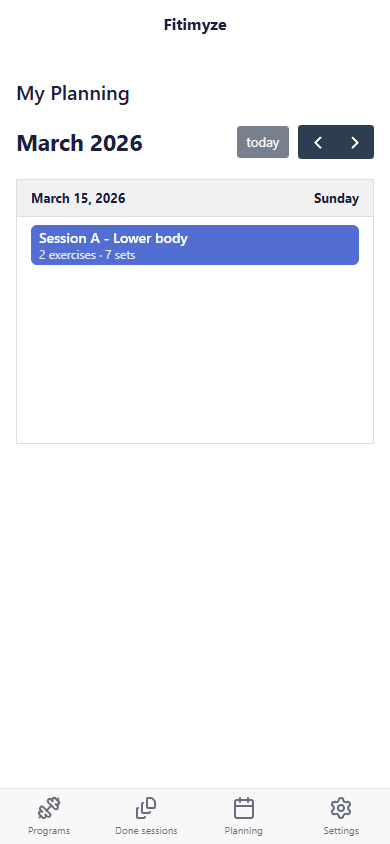
Sessions appear in a chronological list with their date, name, and a content summary (number of exercises, number of sets).
Tap a session to see its detail: planned exercises, sets, weights, and estimated time. The "Start" button launches the session.
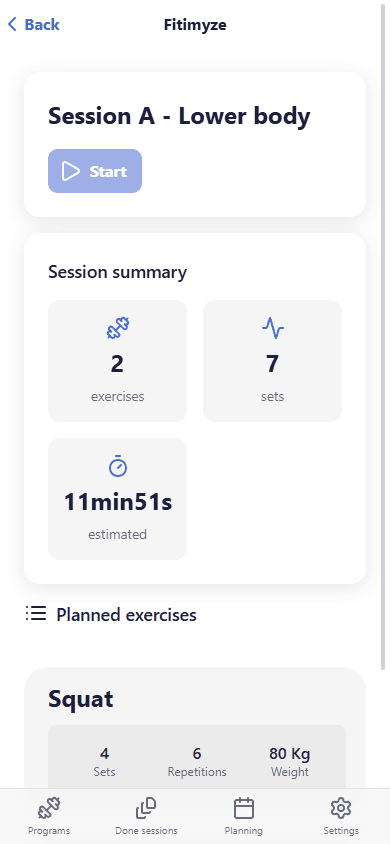
The athlete can still complete a session even if it’s not on the planned date, allowing some flexibility for unplanned events.
Conclusion
Planning lets you organise each athlete's training calendar directly from within the program. Athletes see their upcoming sessions in their Planning tab and know exactly when to start them.